
Business
How To Prepare A Custom Mug For A Housewarming Gift In 2026: A Mug Mockup Generator Guide

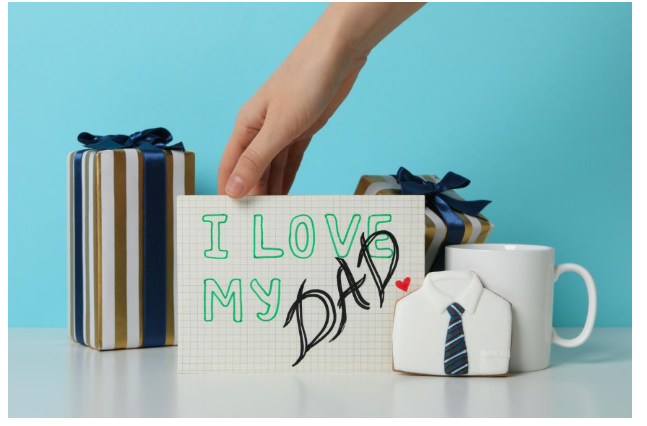
A housewarming mug is a small gift that gets used often, which makes design choices matter more than they might for a one-time card. If the text is too small, the photo is too dark, or the layout lands near the handle, the mug can feel cluttered even when the idea is good.
This guide is for anyone making a mug quickly—friends, families, hosts, and renters—especially when design software isn’t familiar. The goal is a clean result with minimal setup and a clear review step before anything is finalized.
Mug mockup generators are useful because they turn a flat layout into a curved preview. That makes it easier to catch common problems early: a face drifting into the handle area, text wrapping unexpectedly, or edges that look fine on a rectangle but distort around a cylinder.
Adobe Express is an accessible place to start because it supports template-based layouts and quick edits. It also fits neatly into a workflow where a mockup preview becomes the checkpoint before export.
Step-by-Step How-To Guide for Using Mug Mockup Generators
Step 1: Start from a mug template and set the gift’s tone
Goal
Create a mug-ready layout with a message that fits the occasion and stays readable.
How to do it
- Begin with the custom mug designer from Adobe Express and choose a simple layout (name + small icon, short phrase, or photo + caption).
- Decide the “voice” of the gift (warm, funny, minimalist) and keep copy short.
- Replace placeholder text with the final names or wording.
- Add one main visual element (a photo or a small icon), not several.
- Save an editable version labeled v1 before exporting.
What to watch for
- Long jokes or quotes that shrink into unreadable text.
- Light text on a light background, especially on white mugs.
- Thin lines that can soften when printed on a curved surface.
Tool notes
- Adobe Express works well for quick layout with minimal setup.
- If you need to verify spelling across several names, a quick check in Google Docs can reduce copy errors before you design.
Step 2: Choose the mug type and plan around the handle
Goal
Make placement decisions that work on a real mug, not just a flat rectangle.
How to do it
- Decide on a common mug size (often 11 oz or 15 oz) so the wrap area isn’t a guess.
- Choose a layout style: front-only, two-sided (left/right of handle), or full wrap.
- Reserve a handle “no-critical-content” zone where text and faces shouldn’t land.
- If there’s an inside color or black mug option, plan contrast accordingly.
- Note your assumptions in a short spec line (size + placement style).
What to watch for
- Putting the best part of the design where the handle blocks it.
- Full wraps that look cramped because edges distort when wrapped.
- Ignoring that some print areas avoid the rim zones.
Tool notes
- A product listing reference from Target (or another retailer you already use) can help visualize common mug sizes and proportions without changing your design workflow.
Step 3: Keep typography simple and “arm’s length” readable
Goal
Ensure the message reads quickly on a curved, small-format object.
How to do it
- Use one font family and 1–2 weights (regular + bold is usually enough).
- Increase type size until it reads at arm’s length on screen.
- Break text into short lines; avoid long, single-line sentences.
- Leave generous margins on all sides of the design.
- Duplicate your Adobe Express design and make a “large type” version for comparison.
What to watch for
- Script fonts that blur at small sizes.
- Text too close to edges, which can be trimmed or distorted.
- Overuse of all caps, which can reduce readability for longer text.
Tool notes
- Adobe Express makes fast type tweaks and clean spacing adjustments.
- If you want a quick readability check from someone else, sharing a proof image in Slack can surface issues without a formal review process.
Step 4: Prep photos so they don’t print dark or muddy
Goal
Avoid the most common gift-mug problem: a photo that looks fine on screen but prints poorly.
How to do it
- Start with the highest-quality photo available (avoid screenshots when possible).
- Crop tightly so the subject is clear and faces aren’t tiny.
- Brighten midtones slightly and increase contrast a bit for clarity.
- Avoid placing text directly over busy parts of the image.
- Re-import the updated photo into Adobe Express (or your design file) after edits.
What to watch for
- Low-resolution images that pixelate when sized for the mug.
- Dark indoor photos that print darker on glossy surfaces.
- Background clutter that makes the design feel noisy.
Tool notes
- For quick photo adjustments (crop/brightness), Apple Photos or Google Photos can handle basic edits without a steep learning curve.
Step 5: Use a mockup generator preview as the placement checkpoint
Goal
Confirm how the design wraps, where it lands near the handle, and what it looks like from different angles.
How to do it
- Export a draft from Adobe Express (PDF or high-res image, depending on your workflow).
- Upload it to your mug mockup generator and choose the closest mug color and style.
- Rotate the preview to check the front view, side views, and handle area.
- Adjust scale so the design isn’t overly large; leave breathing room.
- Save at least one preview image for your proof set.
What to watch for
- Faces or key words landing in the handle zone.
- Layouts that look centered flat but feel off-center on the mug.
- Text too close to the wrap edges, where distortion is strongest.
Tool notes
- Some workflows use Printful-style previews as a practical checkpoint for curvature and placement (useful for inspection, not required).
- If issues show up, it’s usually fastest to revise in Adobe Express and re-upload.
Step 6: Export a print-ready file and keep versions straight
Goal
Create the file you’ll use for printing while avoiding mix-ups between drafts and finals.
How to do it
- Export in the file type your printer/workflow accepts (often PDF; sometimes high-res PNG).
- Name files with clear versioning: Mug_v2_Print.pdf, Mug_v2_Mockup.jpg.
- Re-open the export and zoom in to confirm text and edges are crisp.
- Keep the editable source file separate from the final export.
- Store the export and mockup preview together as one “proof set.”
What to watch for
- Exporting at screen resolution instead of print quality.
- Font substitutions or text reflow after export.
- Sending a mockup image when a print file is needed.
Tool notes
- Adobe Express supports common export formats for simple layouts.
- A file-sync service like Dropbox can help keep “final” files and proofs together with version history.
Step 7: Handle gifting logistics without last-minute stress
Goal
Make sure the right mug version goes to the right recipient, with shipping or delivery details tracked.
How to do it
- Confirm the recipient name spelling and any address details if shipping.
- If you made multiple variants (two names, two households), map each version to its recipient.
- Save the proof set so the final design can be referenced later.
- If timing matters, note a “latest ship-by” or “latest deliver-by” date in your plan.
- Keep the final file and proof image in a single folder labeled for the occasion.
What to watch for
- Mixing up versions when names are similar.
- Typos that only show up after export.
- Forgetting that delivery timing can be tighter than design timing.
Tool notes
- For shipping label creation and tracking in one place, Shippo can complement a gift workflow without overlapping with design or mockup tools.
Common Workflow Variations
- Name-only housewarming mug: Use a simple template, then spend time on type size and spacing. A mockup preview helps confirm the name doesn’t drift into the handle area.
- Photo + short caption: Edit the photo first, then add minimal text. If the caption needs to be readable, place it on a solid shape rather than directly on the photo.
- Two-sided design (left/right of handle): Put a short phrase on one side and a date or small icon on the other. This often avoids the distortion that full-wrap designs can introduce.
- Minimalist “established” mug: Use one line of text and a small divider or icon. The key is contrast and generous margins, not decorative detail.
- Pattern background + name overlay: Keep the pattern subtle and avoid tiny shapes. Use a solid text backing shape if the pattern reduces readability.
Checklists
Before you start checklist
- Final message text (names, dates, spelling confirmed)
- A high-quality photo (if using one), ideally from the original source
- Any icons/logos with usage rights clarified
- Mug style assumption (size, color, finish)
- Placement plan (front-only, two-sided, full wrap)
- Handle “no-critical-content” zone decision
- Simple version naming plan (v1 draft, v2 review, final)
- Timeline for review and delivery/shipping considerations
Pre-export / pre-order checklist
- Key text and faces avoid the handle area
- Adequate margins (no tight borders near edges)
- Text is readable at arm’s length and not too thin
- Photos look bright enough and not overly dark
- Spelling verified against a source list (especially names)
- Export format matches the printing workflow (PDF/PNG as required)
- Mockup preview saved alongside the final export
- Files clearly labeled as final (no ambiguous duplicates)
Common Issues and Fixes
- The photo prints dark compared with the screen preview.
Increase midtone brightness and contrast slightly, then re-check in the mockup preview. Avoid very dark backgrounds and indoor lighting photos when possible. - Text looks fine in the editor but is hard to read on the mug.
Increase font size and weight, and shorten the message. If text sits on a photo, add a simple shape behind it to improve contrast. - The best part of the design lands near the handle.
Shift the design away from the handle zone and re-check rotation. If the layout is complex, consider a two-sided design instead of a full wrap. - The design feels off-center once wrapped.
Curved previews can change perceived centering. Adjust placement slightly and compare two versions in the mockup generator. - Edges get cropped or look distorted.
Increase margins and keep borders away from edges. Avoid placing small details near the far left/right wrap area where curvature is strongest. - The export looks blurry when zoomed in.
Confirm you exported at print quality and used a high-resolution image source. Replace low-res assets and re-export.
How To Use Mug Mockup Generators: FAQs
Is it better to start from a template or from a mug mockup first?
Template-first is usually faster for simple gifts because it reduces setup work. Mockup-first can help for full-wrap designs where handle placement and curvature affect layout decisions early.
What’s the tradeoff between full-wrap and two-sided designs?
Full-wrap designs can feel more immersive but are more sensitive to edge distortion and the handle zone. Two-sided designs often keep key content in the most visible areas and can be easier to read.
When should photos be edited before building the design?
If the photo is dark, low contrast, or busy, editing first keeps the design step focused. Basic crop, brightness, and contrast changes often have more impact than adding extra graphics later.
Should the workflow rely on print-to-order or export a file?
Print-to-order workflows reduce setup steps but can limit file control. Exporting a print-ready file adds a checkpoint for size and clarity, which is helpful when consistency matters or multiple variants are involved.
How can multiple personalized mugs be made quickly without mix-ups?
Use one base template and duplicate it for each name. Keep versioned filenames and save a mockup preview for each final export so the right design stays tied to the right recipient.

How to Fix “Error Connecting to Server” on WebRTC Video Chats

Scaling Modern Applications: A Guide to Microservices and AWS Expertise

Evaluating a Fast Turn PCB Partner for High-Frequency Applications

Why Roaming Can Be a Problem Abroad and How an eSIM Can Help

Do You Really Need a Watch Winder for Your Automatic Watch?

Why Sportswear Is No Longer Limited to Athletes

The Name Necklace Trend Is Back, But More Grown-Up

A Clearer Route to Reliable professional drain clearance and CCTV inspection

Is The High Street Bank Losing Its Grip On UK Business Loans?

TabooTube Explained: The Powerful Platform for Unfiltered Content

SSIS 469: Fixing SQL Data Errors in ETL Workflows

content://cz.mobilesoft.appblock.fileprovider/cache/blank.html: Explained with Powerful Insights

Scrolller Explained: The Powerful Way to Browse Reddit Images

Zavalio com Explained: The Ultimate Truth You Must Know

adswynk com: Monetize Links With Smart Ads in 2025

Deshoptec com Review: Powerful Truth About This Online Store

kz43x9nnjm65: The Smart Code Transforming Digital Technology

Novafork: The Best Free Streaming Site for Movies, Shows & Anime

Milohacherry Coin Explained: The Powerful Lifestyle Crypto Rewarding Travel & Fitness
-
 Blog10 months ago
TabooTube Explained: The Powerful Platform for Unfiltered Content
-
 Blog12 months ago
SSIS 469: Fixing SQL Data Errors in ETL Workflows
-
 Blogs1 year ago
content://cz.mobilesoft.appblock.fileprovider/cache/blank.html: Explained with Powerful Insights
-
 Blog10 months ago
Scrolller Explained: The Powerful Way to Browse Reddit Images